TesseraGitHub
Español

Esta página aún no está disponible en tu idioma. A continuación se muestra la versión en inglés.

4 min de lecturaEditar en GitHub

Built-in layouts

Tessera provides 18 built-in arrangements. Select layouts in Preferences or configure the ordered cycle in Configuration. A layout computes requested frames; the window manager may enforce its own constraints. See Custom JavaScript layouts for user-written arrangements.
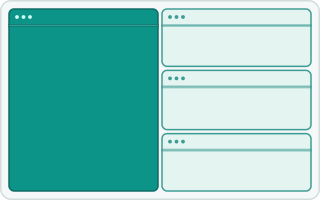
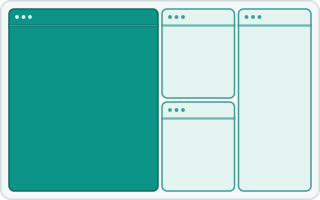
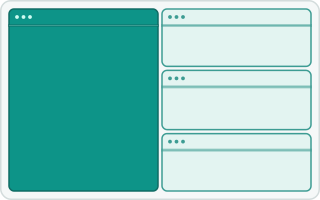
Animation of the tall layout: four windows are added one at a time and the main window is highlighted
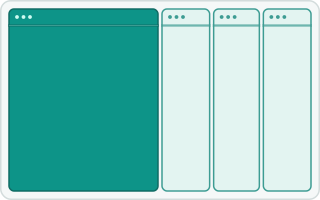
tall
Main windows on the left; secondary windows stack on the right.
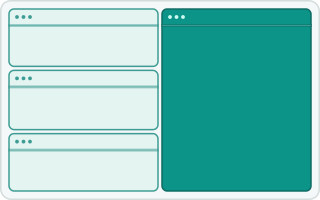
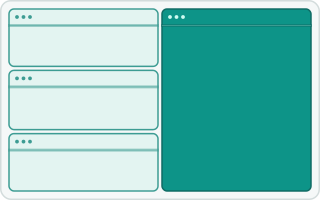
Animation of the tall-right layout: four windows are added one at a time and the main window is highlighted
tall-right
Main windows on the right; secondary windows stack bottom-up on the left.
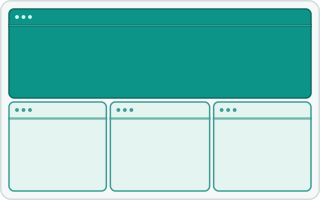
Animation of the wide layout: four windows are added one at a time and the main window is highlighted
wide
Main windows in a row above a row of secondary windows.
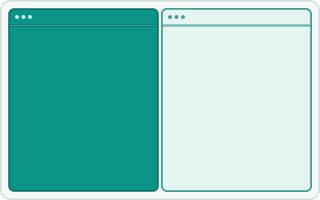
Animation of the two-pane layout: four windows are added one at a time and the main window is highlighted
two-pane
In landscape or square areas, main pane on the left and other windows sharing the opposite pane; in portrait, main pane above the secondary pane.
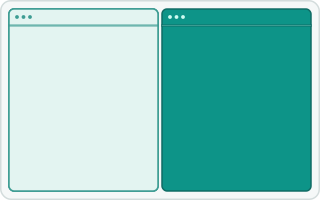
Animation of the two-pane-right layout: four windows are added one at a time and the main window is highlighted
two-pane-right
In landscape or square areas, main pane on the right and other windows sharing the opposite pane; in portrait, main pane above the secondary pane.
Animation of the 3column-left layout: four windows are added one at a time and the main window is highlighted
3column-left
Three columns, with the main column on the left.
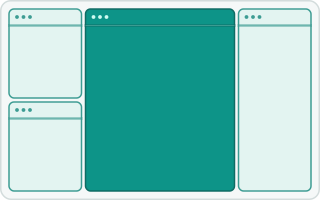
Animation of the middle-wide layout: four windows are added one at a time and the main window is highlighted
middle-wide
Three columns, with the main column in the middle.
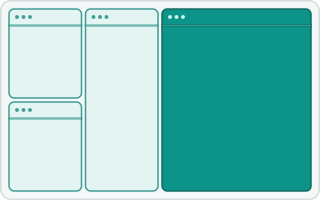
Animation of the 3column-right layout: four windows are added one at a time and the main window is highlighted
3column-right
Three columns, with the main column on the right.
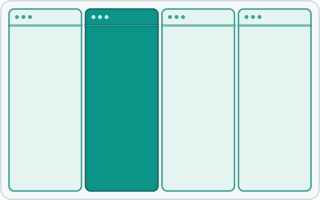
Animation of the 4column-left layout: four windows are added one at a time and the main window is highlighted
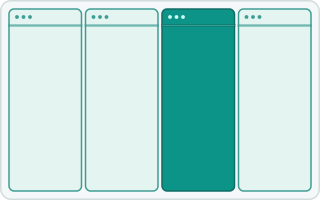
4column-left
Four columns, with the main column in the middle-left position.
Animation of the 4column-right layout: four windows are added one at a time and the main window is highlighted
4column-right
Four columns, with the main column in the middle-right position.
Animation of the fullscreen layout: four windows are added one at a time and the main window is highlighted
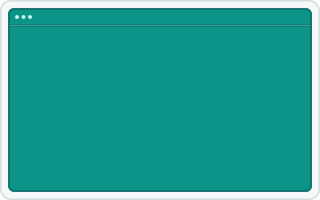
fullscreen
Every window covers the same area; overlap is intentional.
Animation of the column layout: four windows are added one at a time and the main window is highlighted
column
Windows occupy vertical strips, with main windows on the left.
Animation of the row layout: four windows are added one at a time and the main window is highlighted
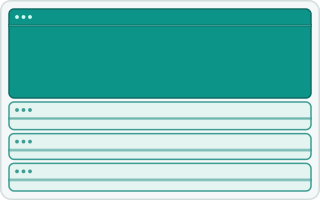
row
Main windows are stacked above secondary windows.
Animation of the floating layout: four windows are added one at a time and the main window is highlighted
floating
No placements are issued; windows keep their current geometry.
Animation of the widescreen-tall layout: four windows are added one at a time and the main window is highlighted
widescreen-tall
Main windows are full-height columns on the left; secondary windows stack on the right.
Animation of the widescreen-tall-right layout: four windows are added one at a time and the main window is highlighted
widescreen-tall-right
Main windows are full-height columns on the right; secondary windows stack on the left.
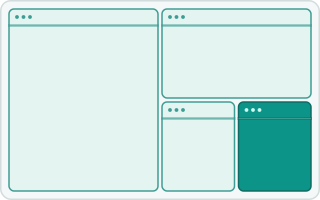
Animation of the bsp layout: four windows are added one at a time and the main window is highlighted
bsp
A binary space-partitioning tree divides the area into nested panes.
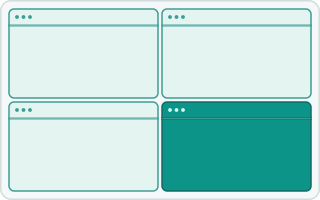
Animation of the grid layout: four windows are added one at a time and the main window is highlighted
grid
An even grid with no main pane.

grid is Tessera’s own layout. In a landscape or square area, it fills columns from top to bottom; in a portrait area, it fills rows from left to right. Extra cells go into the last columns or rows. Main-pane count and ratio do not affect it. Four-column layouts use independently adjustable weights rather than the main-pane ratio.

The default cycle is tall, wide, fullscreen, column. With the default shortcuts, Alt+Shift+Space cycles forward and Alt+Shift+Ctrl+Space backward. See Configuration for bindings, margins, padding, minimum sizes, and the cycle. The layouts and requested sizes are subject to the active backend and window-manager constraints.

Previews and animations

The Preferences window contains layout previews. Each layout above also has an animated SVG that shows four windows being added one at a time. The animations use a 0.5 main ratio and one main window; the highlighted window is the main window, or the focused window for layouts without a main pane. The SVGs adapt to light and dark themes.

The SVGs live in the wiki under images/layouts/ and are embedded by relative path, so they render on this wiki and on the documentation site, which publishes the same files. Each SVG is named after its layout key, except 3column-left and 3column-right use three-column-left.svg and three-column-right.svg, while 4column-left and 4column-right use four-column-left.svg and four-column-right.svg.

The generator writes to crates/tessera-ui/assets/layouts/, which is the copy the application bundles. To regenerate the animations and sync the wiki, run from the checkout root:

cargo run -p tessera-ui --example generate_layout_svgs
cp crates/tessera-ui/assets/layouts/*.svg wiki/images/layouts/

crates/tessera-ui/tests/layout_svgs.rs checks only the copy under crates/ against the generator; it does not cover wiki/images/layouts/. After copying, confirm the two directories match, for example with diff -r crates/tessera-ui/assets/layouts wiki/images/layouts.